Switching day, sorted.
How to move everything across in one sitting: what each importer brings with it, what to do with the leftovers, and what to delete afterwards so nothing lives in two places.
Before you start
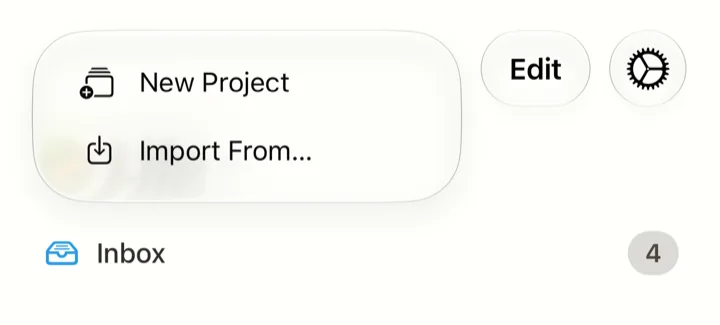
- In the sidebar, tap the + button beside Edit, then Import From…. Importing is also in Spinther’s Settings, under Import & Export.
- An import you start in Spinther shows you what’s coming, with counts, before anything is written. Nothing changes until you confirm.
- Changed your mind? Revert This Import, on the card that confirms an import, takes it back out. Later on, Import & Export has a Revert an Import row for the same job, and for a note you shared in from Notes. Its tasks and ideas go to Trash, where you can recover them. A project it created goes for good once nothing of yours is in it, and so does a New Workspace… it made, with everything in it.
- Bring one app across at a time, and check it before starting the next.
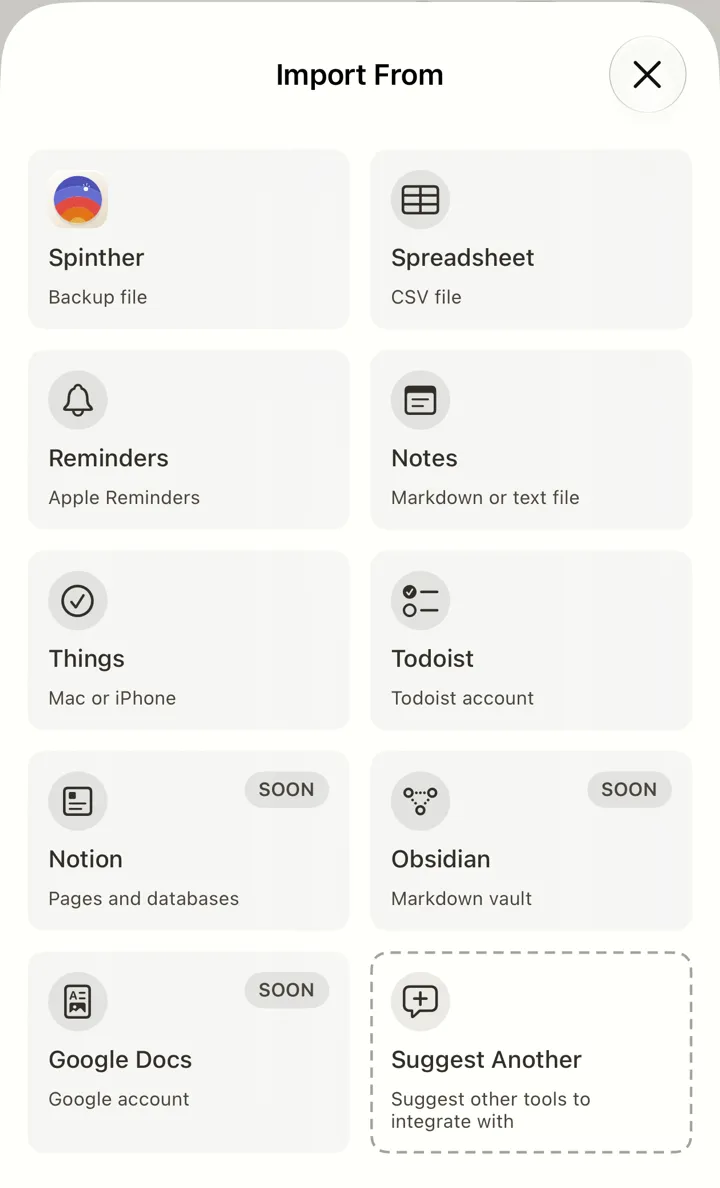
What each importer brings
Todoist
No file needed. Tap Todoist, then Connect to Todoist, and sign in to your Todoist account. Spinther reads your projects and open tasks and shows you everything before it imports.
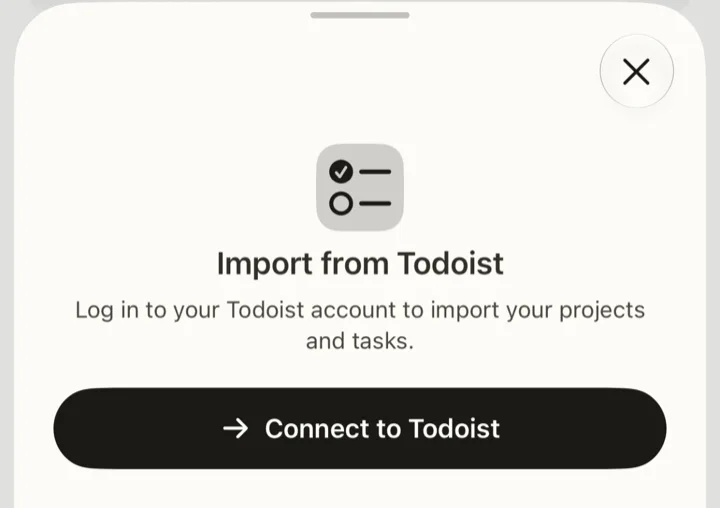
Comes across: your projects, with a sub-project named after the ones above it (“Work → Client A”); open tasks with their due dates, and a reminder where a task is due at a time; most repeats; p1, p2 and p3 as Urgent, High and Medium, and p4 as No Priority. Unless you start afresh with New Workspace…, your Todoist Inbox’s tasks go into a project called Imported from Todoist, so they don’t mix with what you capture.
Leftovers: completed tasks stay in Todoist. A subtask becomes a task of its own, with its parent in front of its title; a section goes in front of the title too. Labels, comments, deadlines and durations land in the task’s notes. A repeat Spinther can’t read, such as an hourly one, arrives as a one-off, and its notes keep the Todoist version (“Todoist date: every hour”).
Things
Tap Things and follow one of its two routes. On My Mac: quit Things and copy its database into iCloud Drive. On This iPhone: use Things’ own database export, in its Diagnostics settings. The sheet walks you through each.
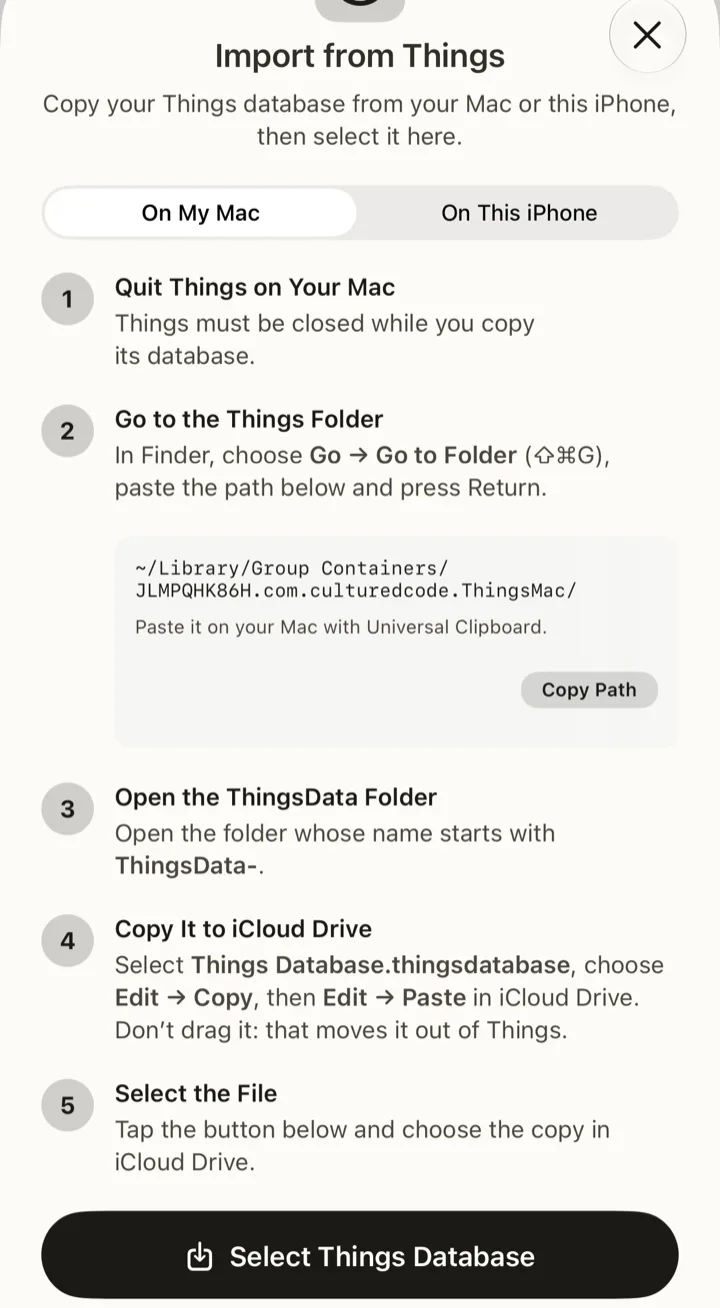
Comes across: your areas, each going where you choose on Map Workspaces (or New Workspace… to keep it apart); projects, with their notes and deadline as the project’s description; headings, in front of their to-dos’ titles (“Phase one → Draft the brief”); When dates as due dates, with their reminders, and This Evening as Evening; most repeats. To-dos in no project go to Imported from Things, unless you send them to New Workspace…. Switches decide whether completed, cancelled and trashed to-dos come along, and whether checklist items and tags go into the notes.
Leftovers: Spinther has no Cancelled or Someday, so a cancelled to-do arrives as Done with “Cancelled in Things” in its notes, and a Someday one as To Do with “Someday in Things”. A deadline beside a When date goes into the notes, except on a to-do that keeps its repeat. A repeat Spinther can’t match exactly arrives as close as it gets, or as a one-off, with a line in its notes saying it repeated in Things; the line doesn’t give the schedule, so note it before you clear Things out.
Apple Reminders
Tap Reminders and allow access. Every list starts ticked; tap one to leave it out, and choose whether completed reminders come too.
Comes across: each list as a project; due dates; High, Medium and Low priorities; most repeats and timed alerts.
Leftovers: subtasks arrive as tasks of their own. Tags, flags, sections and images stay behind, and so does a link you added in Reminders, which Apple doesn’t let other apps read. A location alert can’t come across. A task that lost an alert or part of its repeat says so at the end of its notes: search Spinther for Not imported from Reminders to find them.
Apple Notes
Tap Notes for two routes. Share from
Notes is the quickest: open a note, tap Share,
then Add to Spinther (if it isn’t listed, tap
Edit Actions… at the end and add it).
Export a File uses
Notes’ Export as Markdown: save the export to Files,
then tap Select a Markdown or Text File and choose the
.md file inside the folder Notes made.
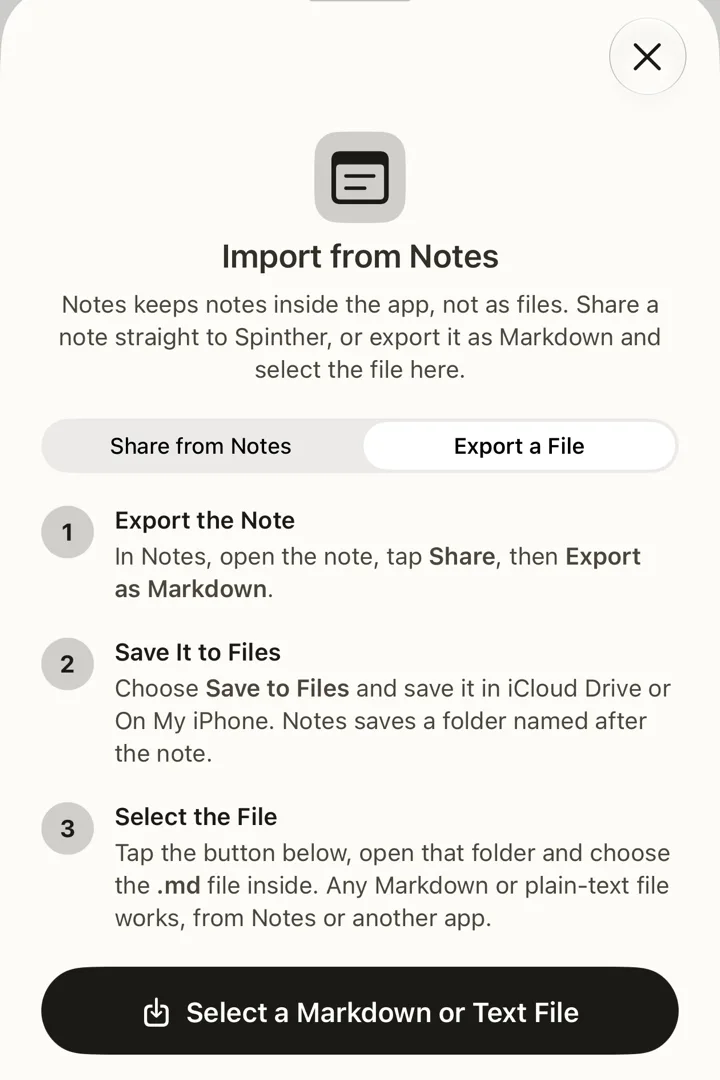
Comes across: headings as projects, and the text under a heading as its description; list items as tasks or ideas; an indented item in the notes of the item above it. Under Import items as, Both, the starting choice, makes checklist items tasks and other items ideas; choose Tasks or Ideas to make them all one kind.
Leftovers: bold and other formatting come off titles, and a link in a title leaves its address in the notes. Spinther can’t recognise a note it has seen before, so importing the same one twice makes a second copy.
Spreadsheets
Save the sheet as a CSV file. In Google Sheets, that’s File › Download › Comma Separated Values (.csv); in Excel, File › Save a Copy as CSV UTF-8 (Comma delimited); on your iPhone, Numbers exports one under More, Export, CSV. Then tap Spreadsheet and Select a CSV File.
Comes across: each row with a title, as a task. On Match Columns, you say which column holds the Title, Notes, Due Date, Priority, Status, Done and Project; Spinther makes a first guess from the column names, and shows the first rows as the tasks they’ll become.
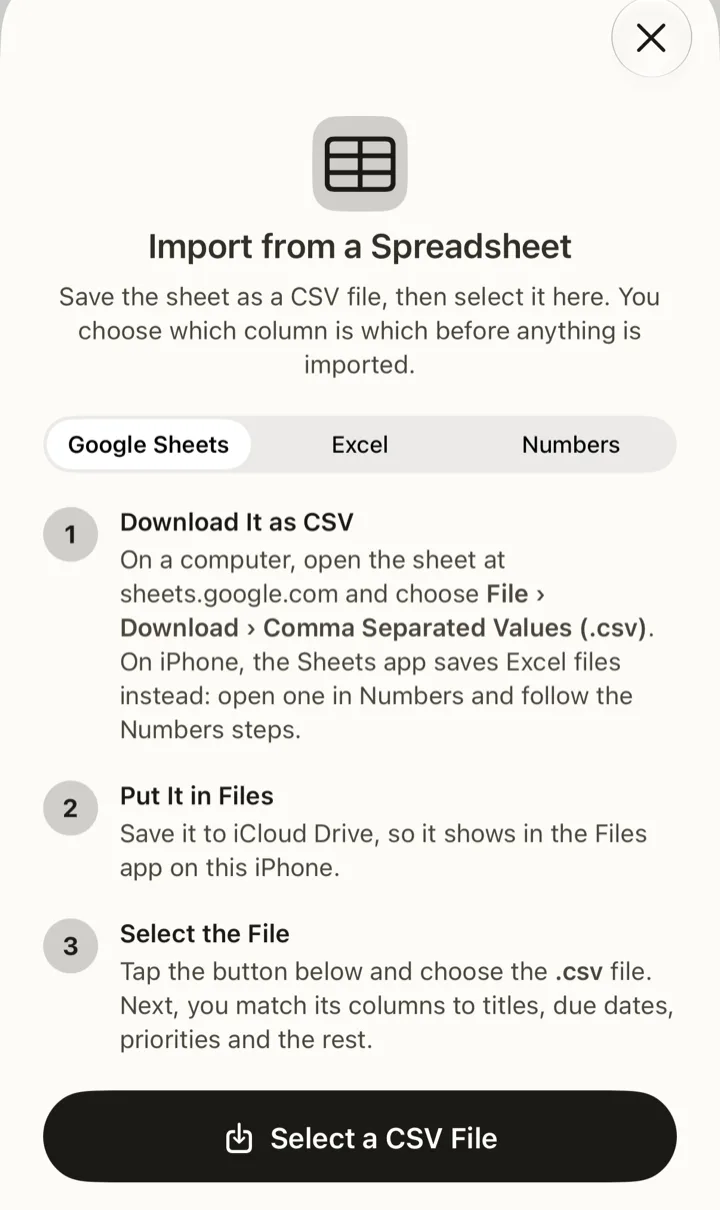
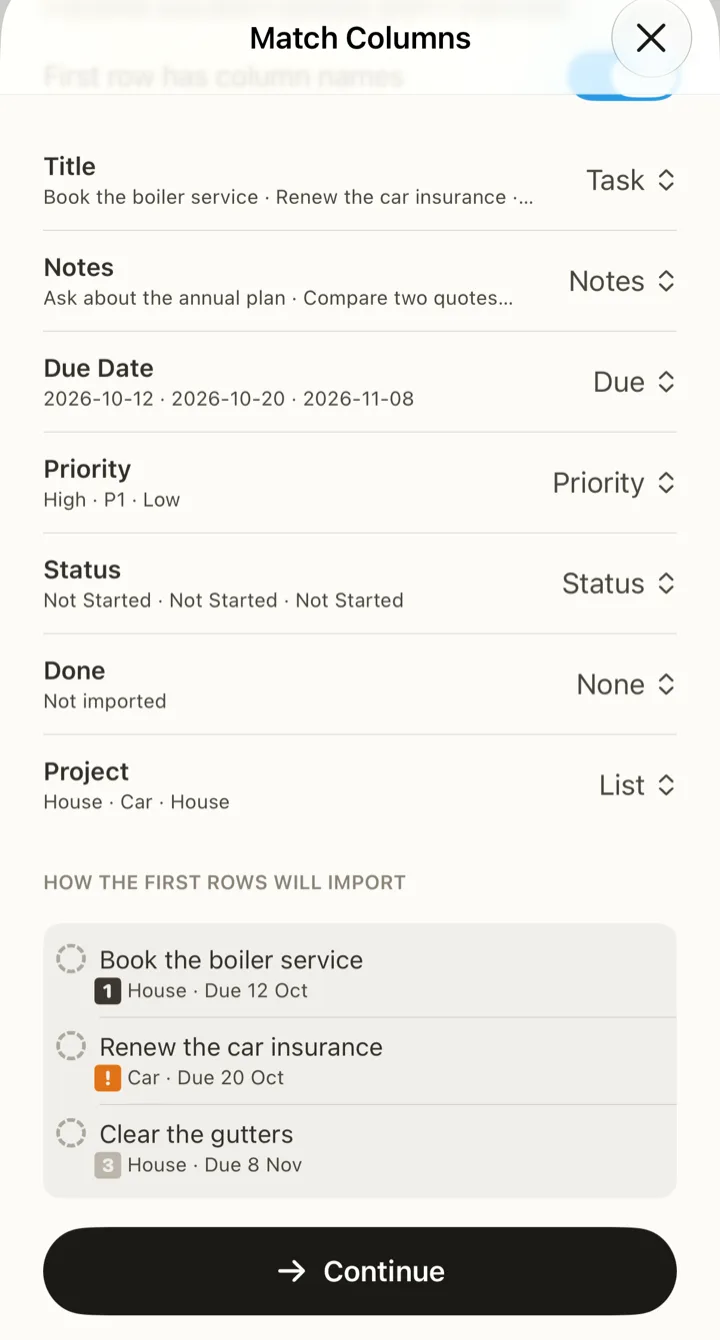
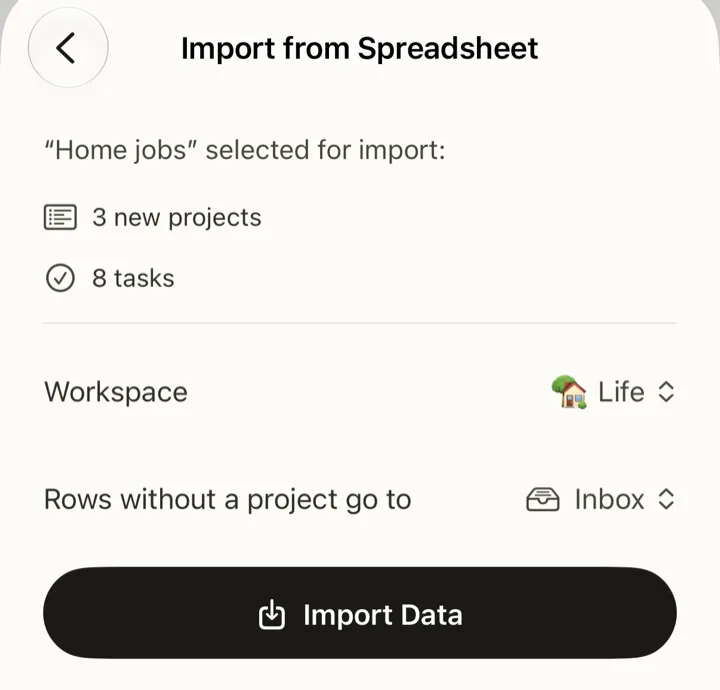
Leftovers: a cell Spinther can’t read goes at the end of its task’s notes, after its column’s name (“Priority: whenever”), so you can see what didn’t fit. A row with no title is skipped, and a column you don’t match isn’t imported. Importing the same file twice makes a second copy.
The leftovers
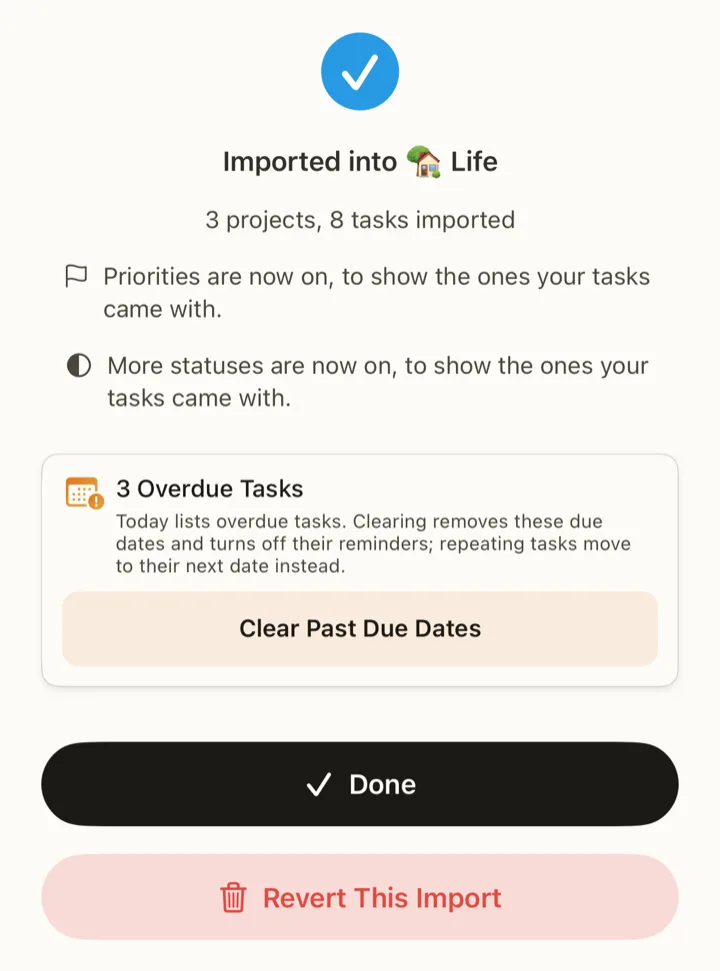
- An overdue pile. Tasks you’d let slide in the old app arrive overdue. When an import brings some, its card counts them and offers Clear Past Due Dates: each loses its due date and reminders, and a repeating one moves to its next date instead. Tap Done to keep the dates.
- Repeats that didn’t fit. The card counts any repeat that couldn’t come across exactly (“2 recurring tasks couldn’t repeat exactly”), and a line in each one’s notes says so. Only Todoist’s line gives the old schedule, so check the rest in the old app and set them by hand before you delete anything there.
- Long-finished tasks. From Things, Reminders and a spreadsheet, a task finished longer ago than your auto-archive setting goes straight to the Archive, out of the way. The card says how many.
What to delete afterwards
An import reads from the app you’re leaving and never changes it, so everything you brought across is still there, still sending its alerts. Once you’ve checked what arrived:
- In the old app, delete or archive what came across, or at least turn off its notifications, so the same task doesn’t remind you twice. For Apple Reminders, that means the lists you imported. To import, Spinther only asks Todoist to read your account; once you’re done, you can remove its access in Todoist’s settings.
- Keeping the old app for a few more days? Importing again into the same place is safe from Todoist, Things and Reminders: Spinther skips what it brought across before and still has, and adds what’s new. From Notes or a spreadsheet, it isn’t: a second import makes a second copy.
- In Spinther, move what landed in Imported from Todoist or Imported from Things into its place as you meet it.
Questions
Coming from an app this guide doesn’t cover, or stuck on one it does? Write to hello@spinther.app.